Start here — a real project, not a pretend demo

See how this very website was actually built.

The goal was simple: build a beginner-friendly technology site. The process was not one perfect straight line. It took screenshots, questions, wrong turns, fixes, SSL work, file moves, and repeated “is this right?” checks. That is exactly why the one-click method works.

Last updated: August 15, 2026 · By Mark Rosenthal

33screenshots saved during the build
12real screenshots shown in this lesson
1working website at the end
0need to memorize cPanel
The rule before changing anything: make a backup, take a screenshot, change one thing, then test it. And before uploading a screenshot to AI, make sure it does not show passwords, recovery codes, private keys, payment information, or other sensitive data.
The actual build

What “one click at a time” looks like in real life.

These are screenshots from the actual OneClickAtATimeTech.com setup. The important part is not memorizing the screens. It is seeing how each unknown screen became one small next decision.

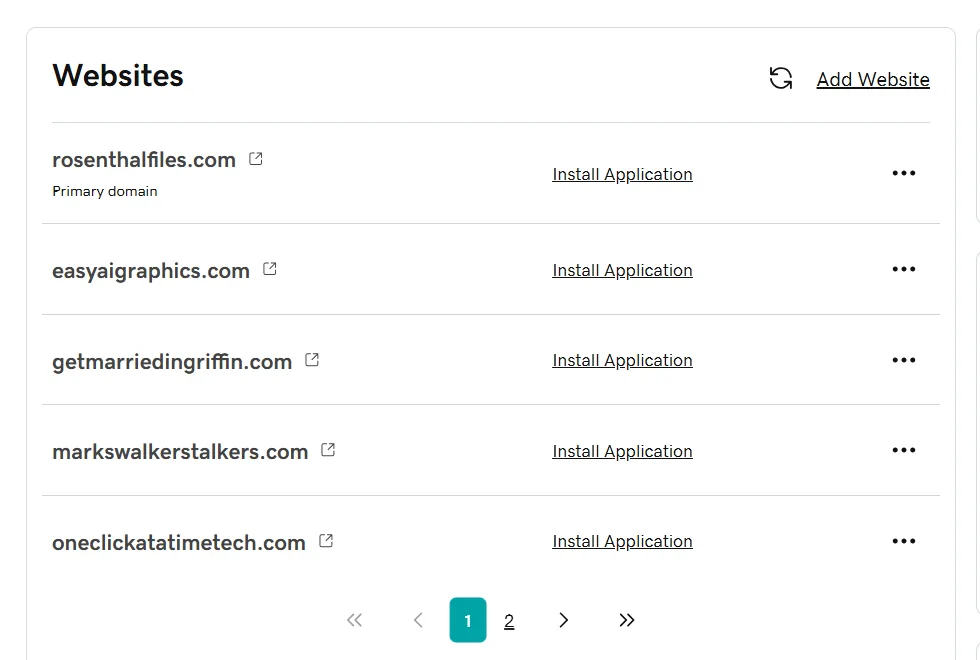
GoDaddy hosting dashboard showing the new website among hosted domains
1

Start with what already exists.

The new domain had to be added to the same GoDaddy hosting account that already held other websites. No server-management vocabulary was required first—just identify where the website should live.

What Mark was asking

“Am I in the right place? What am I looking at?”

AI’s job here: identify the correct area and give only the next click.
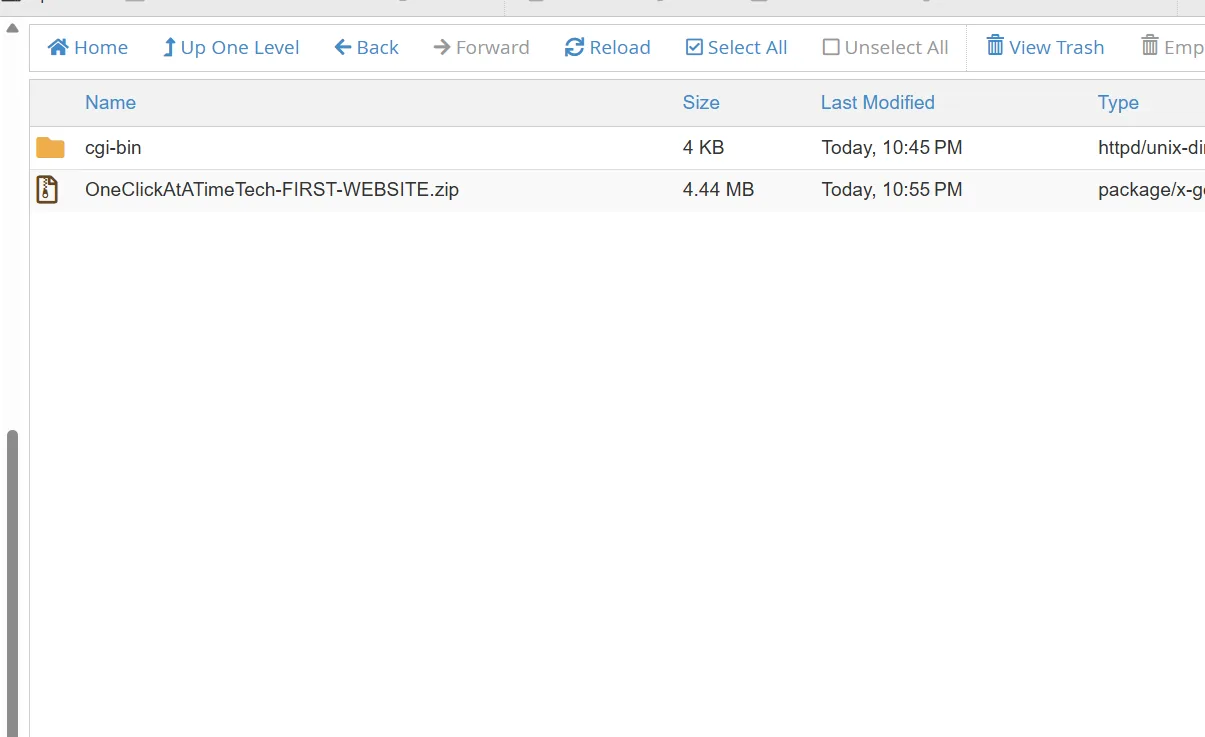
cPanel File Manager showing the first website ZIP uploaded into the new domain folder
2

Upload the first website package.

The first version of the site arrived as a ZIP file. The practical question was not “How does Apache hosting work?” It was simply: is the ZIP in the correct domain folder?

The one-click style

Upload the file here. Stop. Show the next screen before extracting or moving anything.

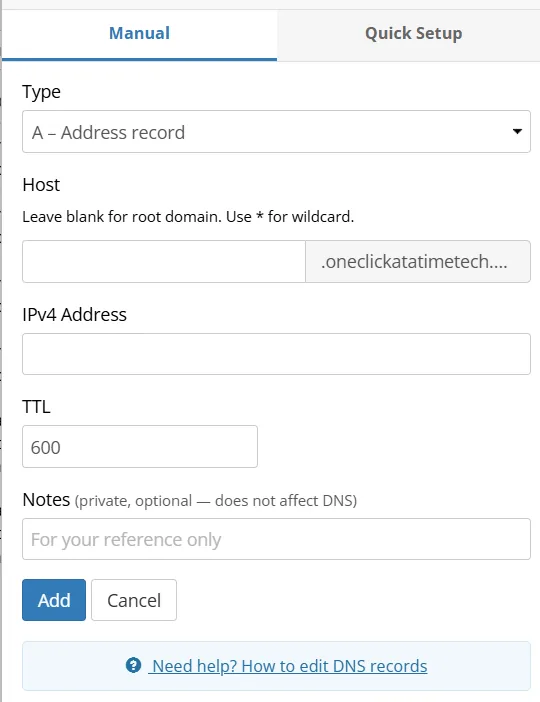
Porkbun DNS screen for adding an A record
3

Point the domain to the hosting server.

DNS screens look technical, but the work can still be broken into one field at a time: record type, host, IP address, then save.

Beginner question

“Is this the right type? What do I put in this box?”

The learner does not need to become a DNS expert before completing one DNS record.
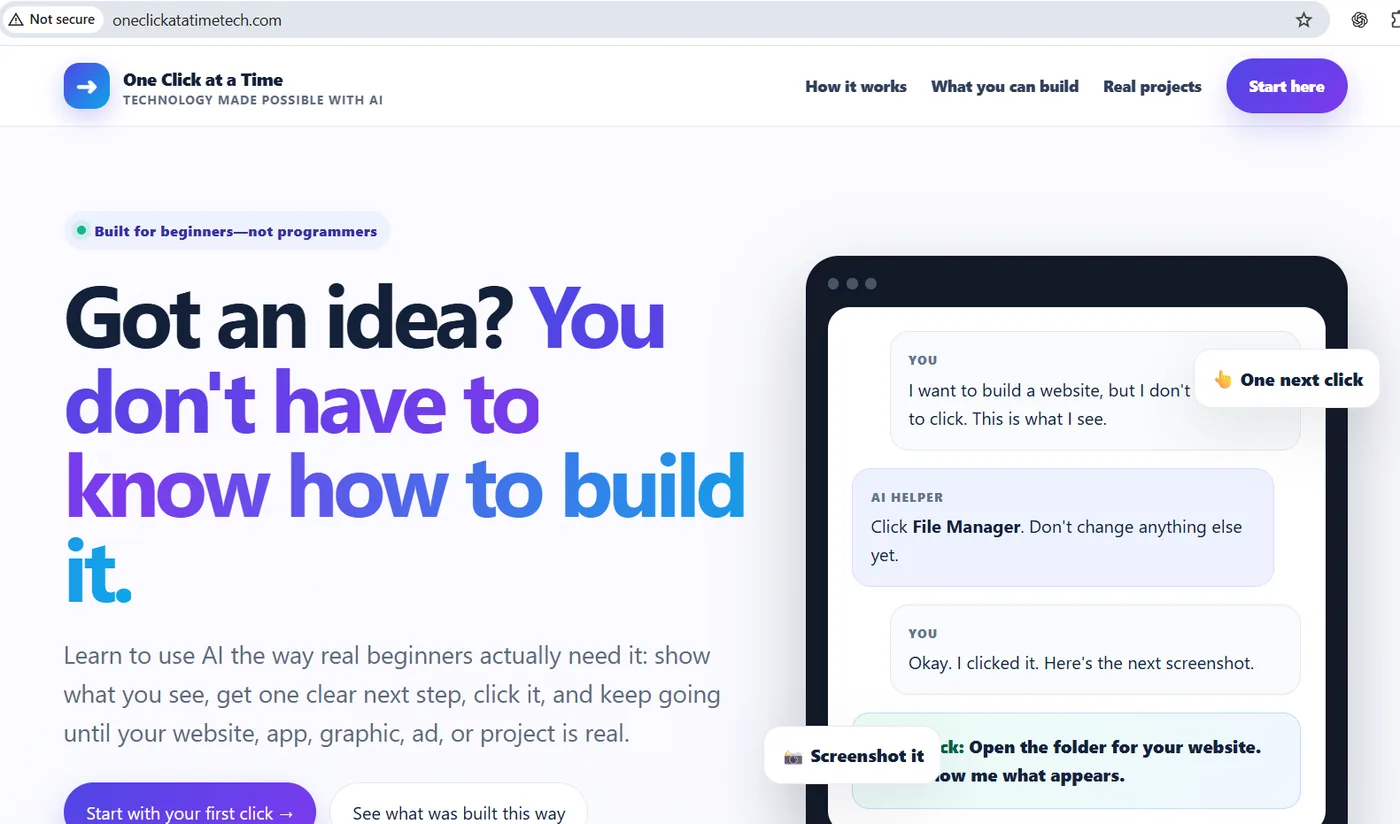
The first live version of One Click at a Time in a browser
4

Test early instead of waiting for perfection.

The homepage appeared before every technical detail was finished. That matters: once something is visible, you can test the real site instead of guessing whether the upload worked.

What changed

The project went from “files on a computer” to a real page anyone could load.

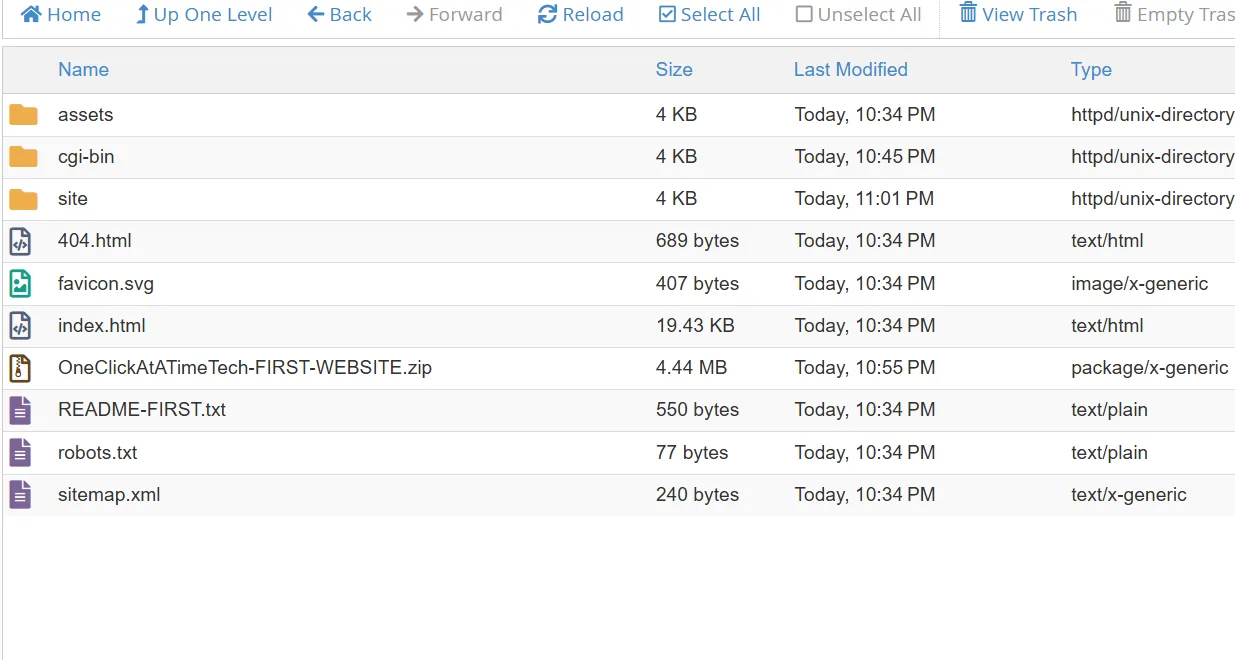
cPanel File Manager showing an unwanted nested site folder after extraction
5

A mistake happened: the ZIP created an extra folder.

The extracted files landed partly inside a nested site folder. This is a perfect one-click lesson: do not panic, do not start deleting everything, and do not guess. Look at the file tree and correct one placement problem.

Real-world thought

“Something went into that site folder. Is that where it is supposed to be?”

Mistakes become teachable screenshots instead of dead ends.
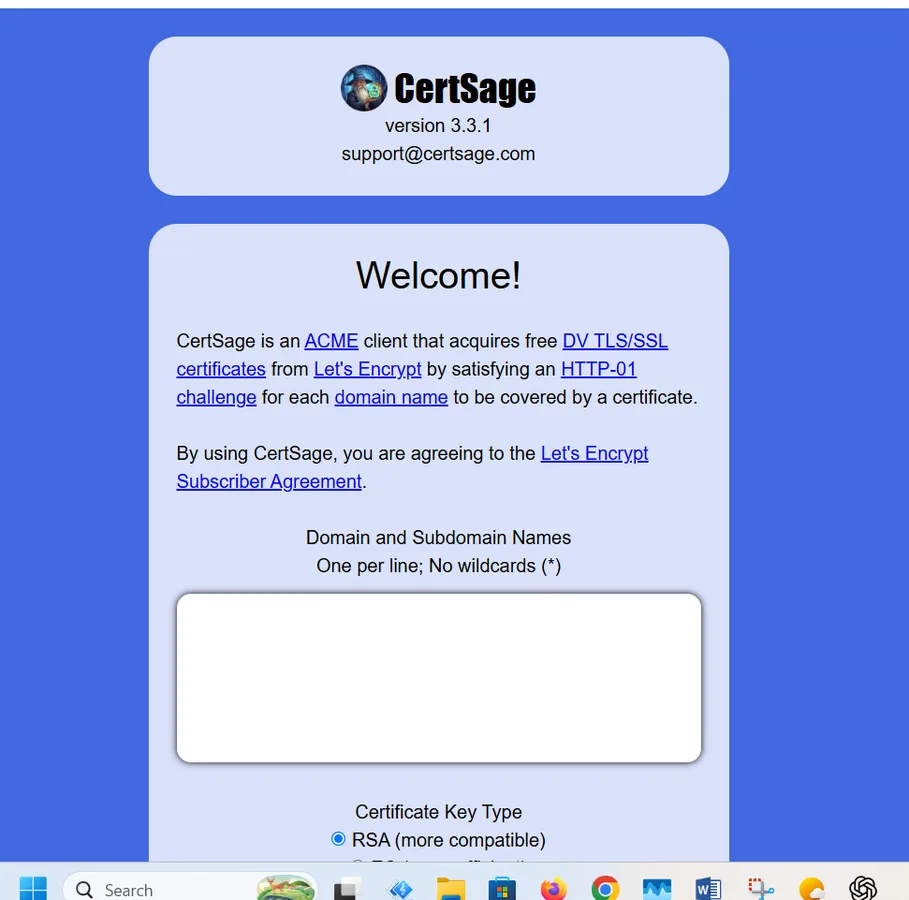
CertSage SSL certificate setup page
6

Add HTTPS without pretending SSL is simple.

The site needed a valid certificate. CertSage handled the certificate process, while the setup was done carefully so this domain stayed isolated from the other hosted sites.

Why screenshots mattered

At each screen, the question was: “Is this the right page, and what do I enter next?”

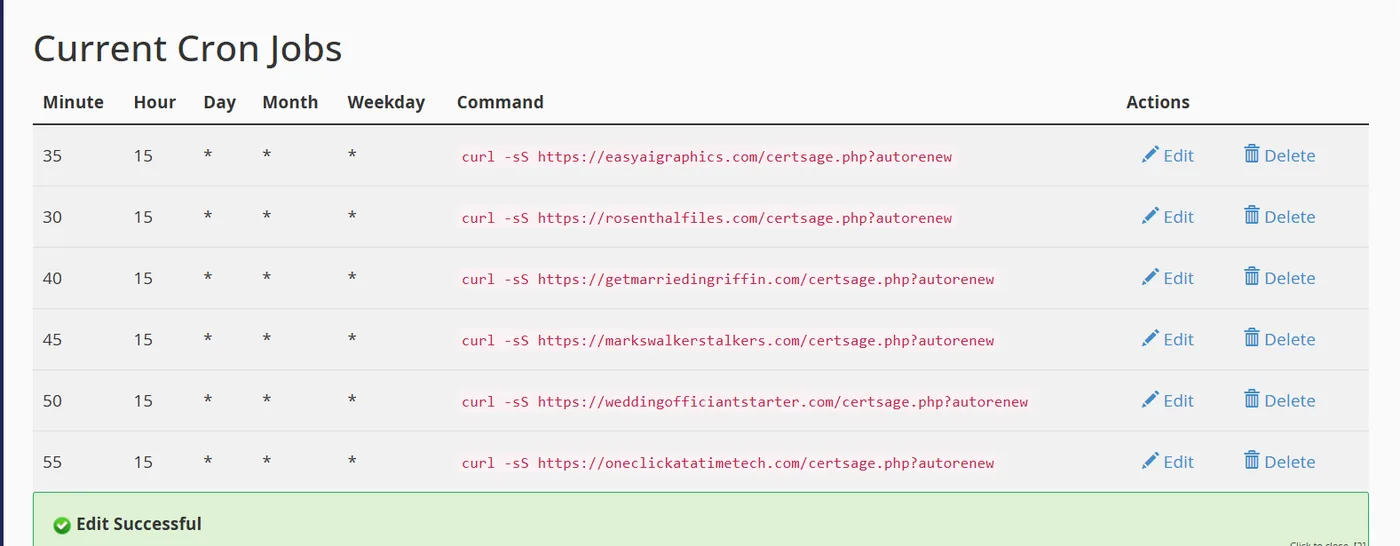
cPanel cron jobs showing automatic CertSage renewal commands
7

Verify the automatic renewal instead of assuming it exists.

The SSL certificate worked, but the job was not finished until the renewal task was visible too. The screenshot made it possible to confirm the new site had its own scheduled renewal entry.

Good beginner habit

Do not just ask “Did it work?” Ask “Will it keep working later?”

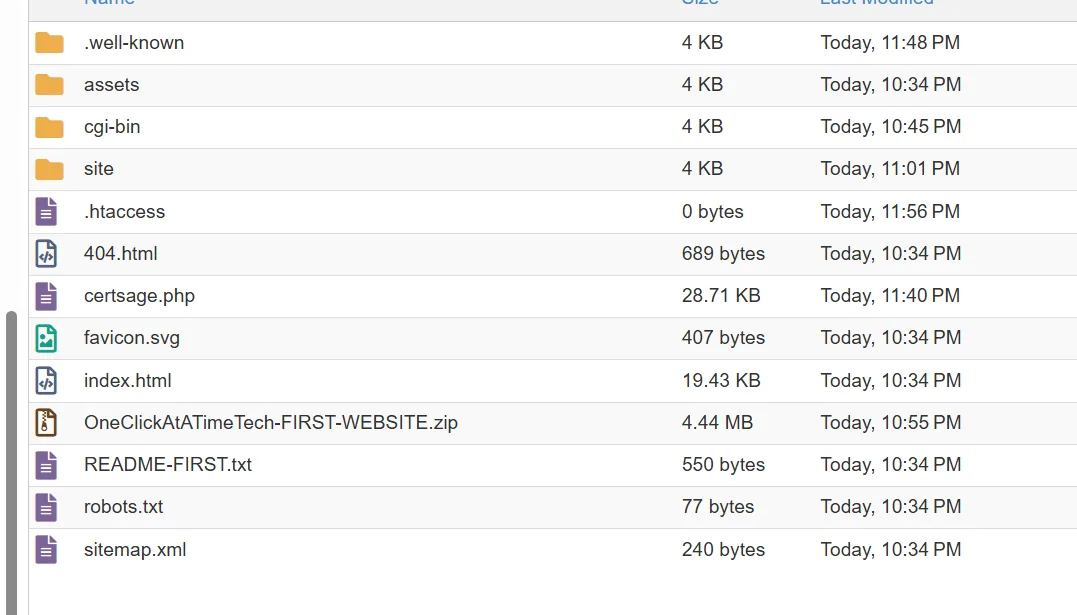
cPanel File Manager showing the .htaccess file in the One Click at a Time website folder
8

Create the HTTPS redirect file.

A small .htaccess file was created in the site’s own folder so the redirect would affect this website rather than the other domains on the account.

The safe approach

Create the file first. Do not change anything else. Then add the known-good redirect code.

RewriteEngine On RewriteCond %{HTTPS} !=on RewriteRule ^ https://%{HTTP_HOST}%{REQUEST_URI} [L,R=301]
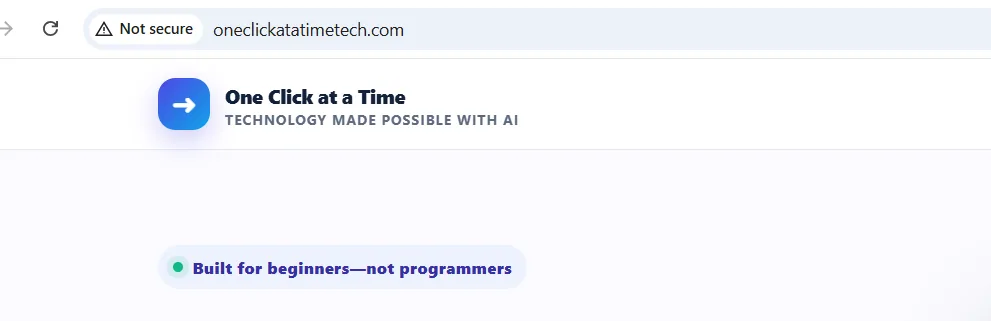
Browser showing the site still loading as Not secure over HTTP during testing
9

The first redirect test failed.

This is important to show beginners: a failed test does not mean the whole project failed. The secure certificate worked, but typing the HTTP address still produced “Not secure.”

What the screenshot said

The browser itself provided the next clue: the redirect rule was not doing what we expected.

cPanel Domains page showing Force HTTPS Redirect unavailable for the domain
10

The obvious cPanel switch was unavailable.

The hosting panel showed the Force HTTPS option, but it could not be enabled because GoDaddy’s AutoSSL was not the certificate system being used. Instead of fighting that switch, the setup went back to the same simple redirect code that had worked on the other websites.

Real troubleshooting

“It will not allow me to turn it on.” That sentence plus a screenshot was enough to change the plan.

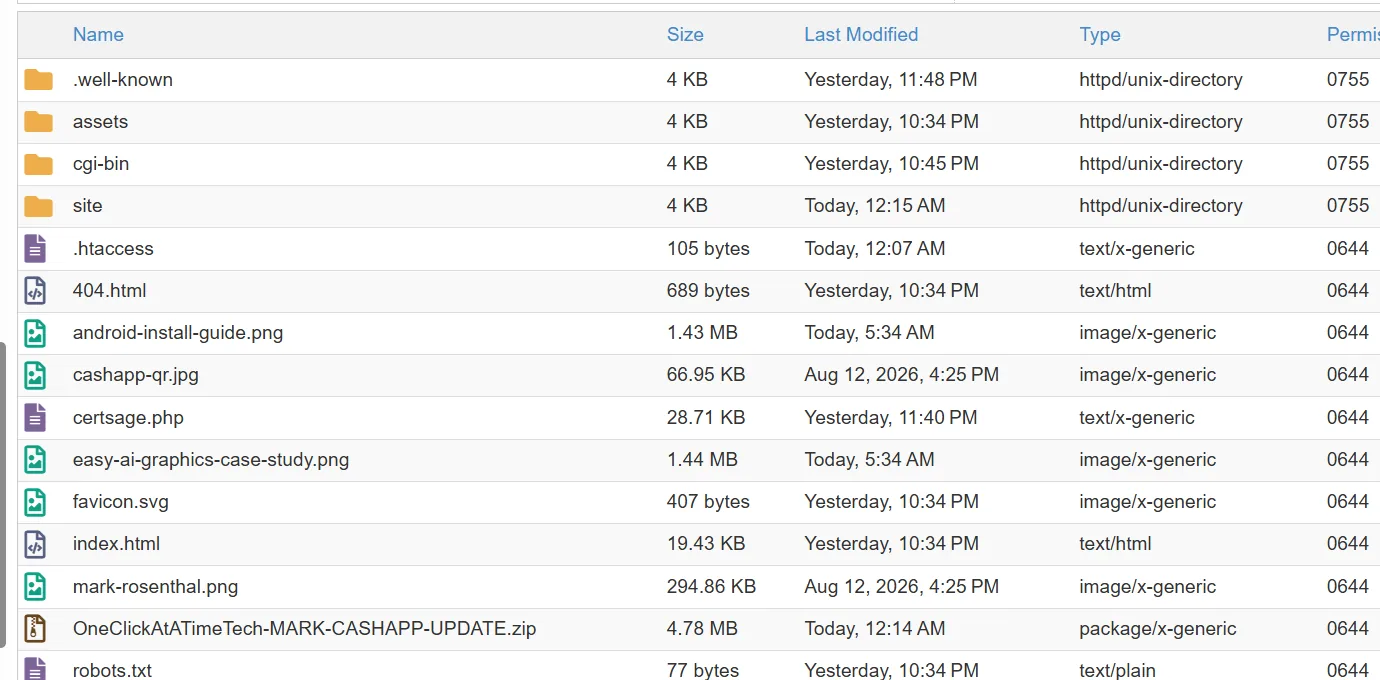
File Manager showing an older 19.43 KB index.html after an update did not replace it
11

Later, an update looked right—but the old homepage was still there.

New image files had been moved, but the old index.html still showed the earlier file size. The screenshot exposed the problem immediately.

Mark’s real message

“Something went wrong… I’m not sure if it replaced it or didn’t replace it.”

Instead of guessing, compare filenames, sizes, and modified times.
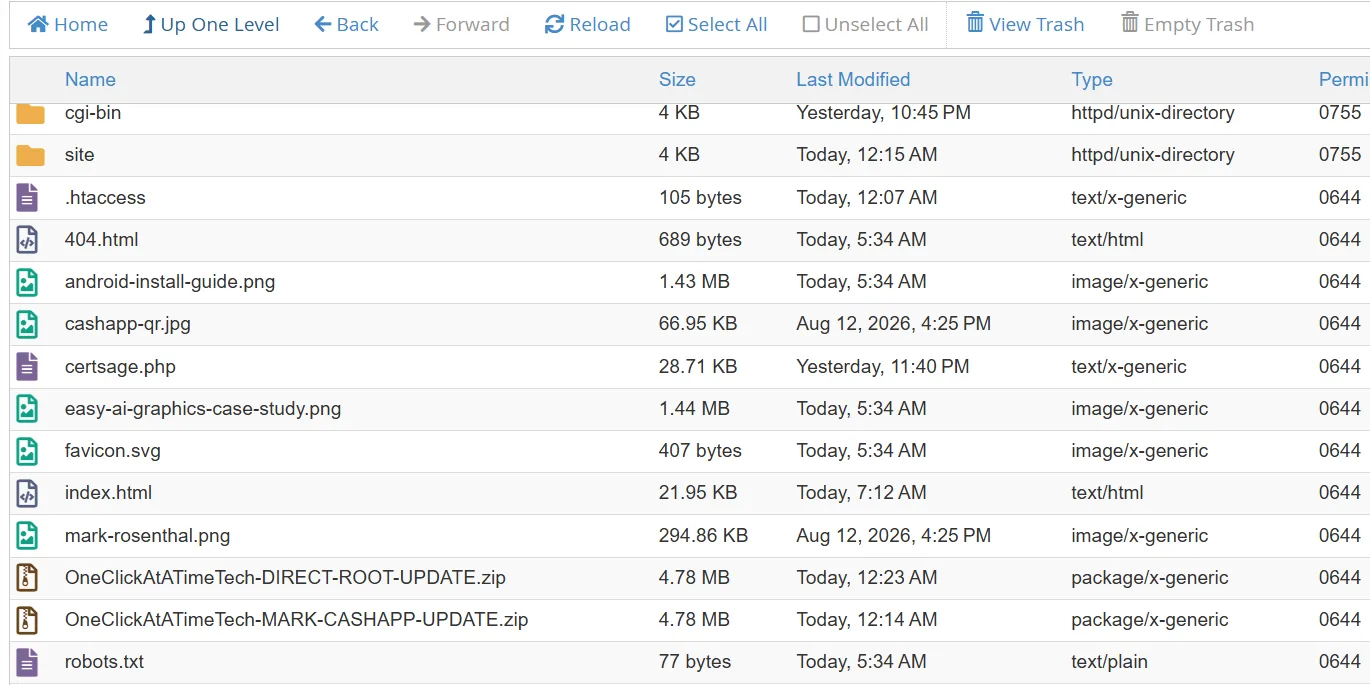
File Manager showing the newer 21.95 KB index.html after the corrected direct-root update
12

The corrected package replaced the file properly.

A new direct-root ZIP avoided the extra folder problem. After extraction, index.html showed a newer timestamp and a larger file size. That was the proof to test the live page again.

The result

It worked. The new section appeared, and the lesson itself became another example for this website.

What this teaches

You do not need to understand the whole control panel.

You need a reliable way to move from the screen in front of you to one safe next action.

📸 Show what you see

A screenshot removes a lot of guessing about buttons, folders, warnings, and settings.

👆 Ask for one next click

Ten steps at once create confusion. One clear action is easier to verify.

🧪 Test after every important change

Open the real page, test the button, check the redirect, or compare the file timestamp.

💾 Back up before changing things

A backup turns experimentation into something recoverable instead of scary.

🔒 Protect sensitive information

Crop or hide passwords, recovery codes, private keys, payment details, and other secrets before sharing screenshots.

🔁 A wrong turn is part of the process

The extra folder, failed redirect, and old index file were not wasted time—they became the clues that led to the fix.

The prompt that drives the whole method

When you are looking at a screen you do not understand, upload the screenshot and say:

“This is what I see. Tell me only what to click next. Do not give me the next step until I tell you I finished this one.”

Your project can start the same way.

You do not need to know every technical word before you begin. Pick one small project, show ChatGPT what you see when you get stuck, and work one verified step at a time.

Choose what you want to build