Fix something with a screenshot—without guessing.
When a screen looks unfamiliar, let the screenshot become the shared starting point for one safe next step.
A screenshot turns “I don't know what this is” into something we can work with.
You do not need to know whether the problem is DNS, cPanel, SSL, Android, a browser cache, or the wrong file. Start by showing the actual screen and describing what you expected to happen.
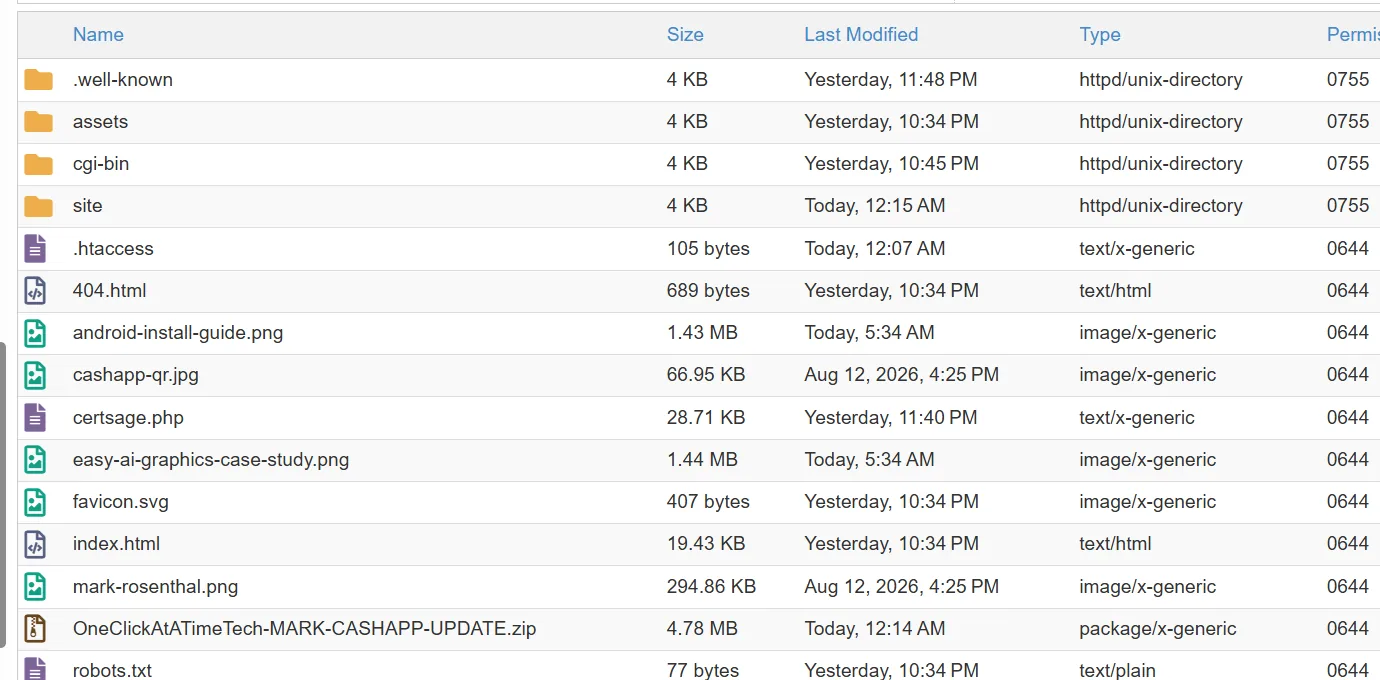
Do this every time you get stuck.
State the result you wanted
Example: “I uploaded the update, but the new section is not showing on the website.”
Take a screenshot with enough context
Include the file list, error message, address bar, or settings around the problem—but crop unrelated private information.
Ask for only the next click
Do not ask for twenty steps. Ask the AI to identify what it sees and tell you the single next action.
Do that one thing
Do not change extra settings “while you are there.” Extra changes make it harder to know what fixed or broke the problem.
Show the new screen
If the next screen is different from the tutorial, that is useful information—not failure.
Test the real result
Open the website, download the file, click the button, use incognito mode, or compare file size and modified time. Verify with evidence.
This is what I see. I expected [describe the result]. Tell me only what to click next. Do not give me the next step until I tell you I finished this one.Real example: the HTTPS test
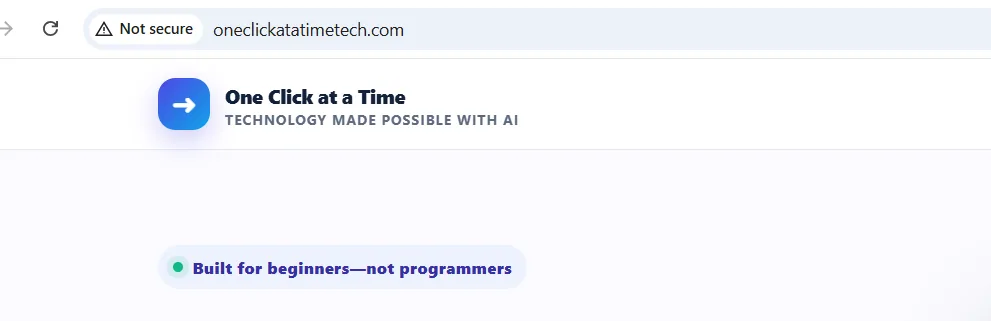
The screenshot showed that the certificate existed but the HTTP redirect had not taken effect. That changed the next step.
Real example: the corrected update
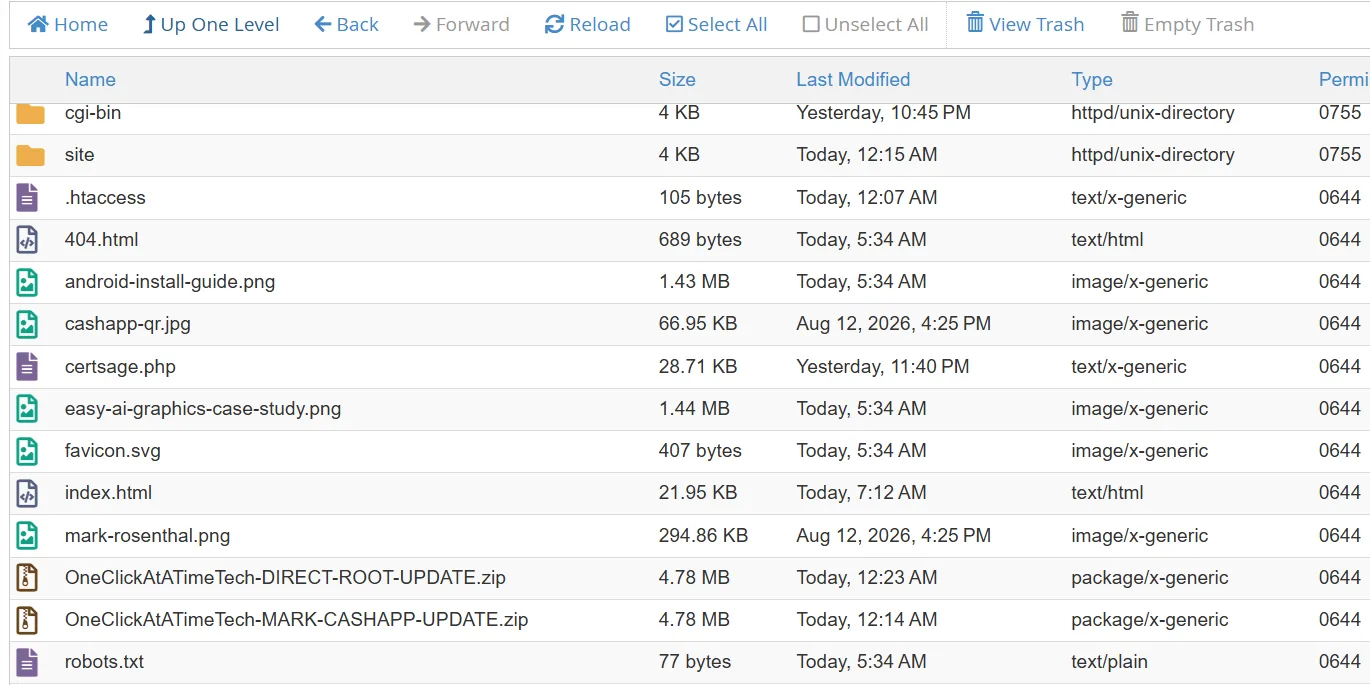
The file size and new modified time proved the updated index actually replaced the old one before testing the live page again.
The screenshot is not the lesson. The loop is.
Show the screen, make one change, verify the result, and repeat until the problem is solved.
See the full real-build example