1
Have an idea
Start with ordinary words: “I want a website,” “I need an app,” or “I want to advertise this.”
Learn to use AI the way real beginners actually need it: show what you see, get one clear next step, click it, and keep going until your website, app, graphic, ad, or project is real.
No coding background required. No pretending you already know the technical words.
You do not need to describe every button perfectly. Let the AI see the same screen you see, then ask for one next step.
Start with ordinary words: “I want a website,” “I need an app,” or “I want to advertise this.”
Take a screenshot when you are unsure what to do next.
Tell the AI to give you only the next click—not ten confusing steps at once.
Do that one thing. If your screen looks different, take another screenshot.
Repeat until the idea becomes a finished, working project.
“This is what I see. Tell me only what to click next.”The lesson starts with the result you want—not with a pile of technical vocabulary.
Follow the real OneClickAtATimeTech.com build from hosting and DNS to SSL, mistakes, and fixes.
33 real screenshots →See the beginner path from an idea to Android Studio, testing, a signed build, and getting the app onto a phone.
Real-project lesson →Turn a simple idea into a strong image prompt, generate the graphic, check the wording, and improve it.
Start creating →Error message? Broken page? Wrong button? Learn the exact screenshot method for troubleshooting safely.
No guessing →See how Wedding Officiant Starter went from an idea into a real paid online business with a public website, private Student Center, software, and an Android app.
See the real business build →Learn when to chat, when to upload a screenshot, and when Codex can work with the actual project files.
Beginner Codex guide ↓Use the FAQ when something feels basic, confusing, or different from the screenshots. That is exactly what it is there for.
These case studies show the same beginner-friendly process—from first idea through problems, fixes, publishing, and promotion.
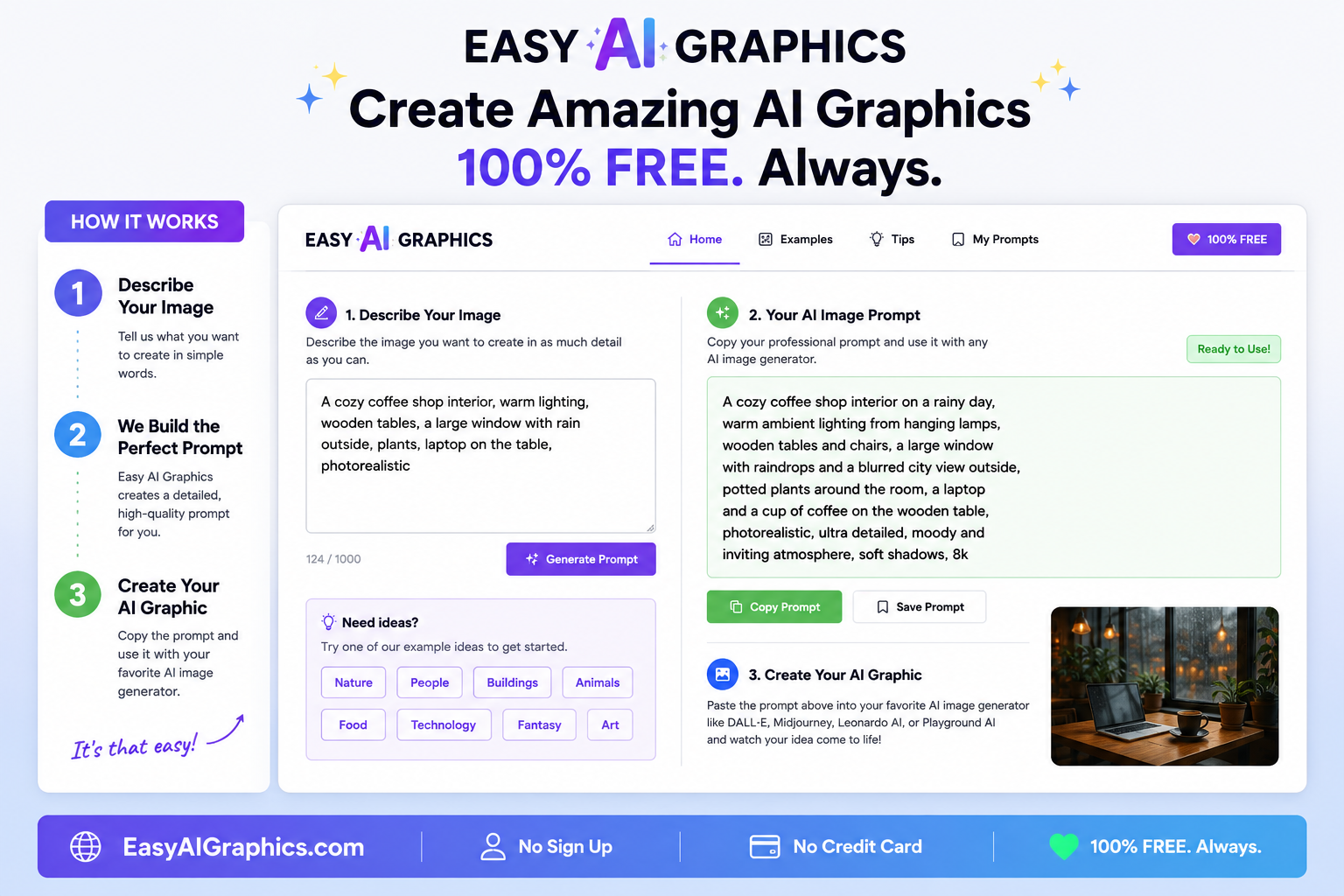
A free AI graphics prompt builder that grew from an idea into a website, tool, Android project, promotional graphics, and search presence.
Visit EasyAIGraphics.com →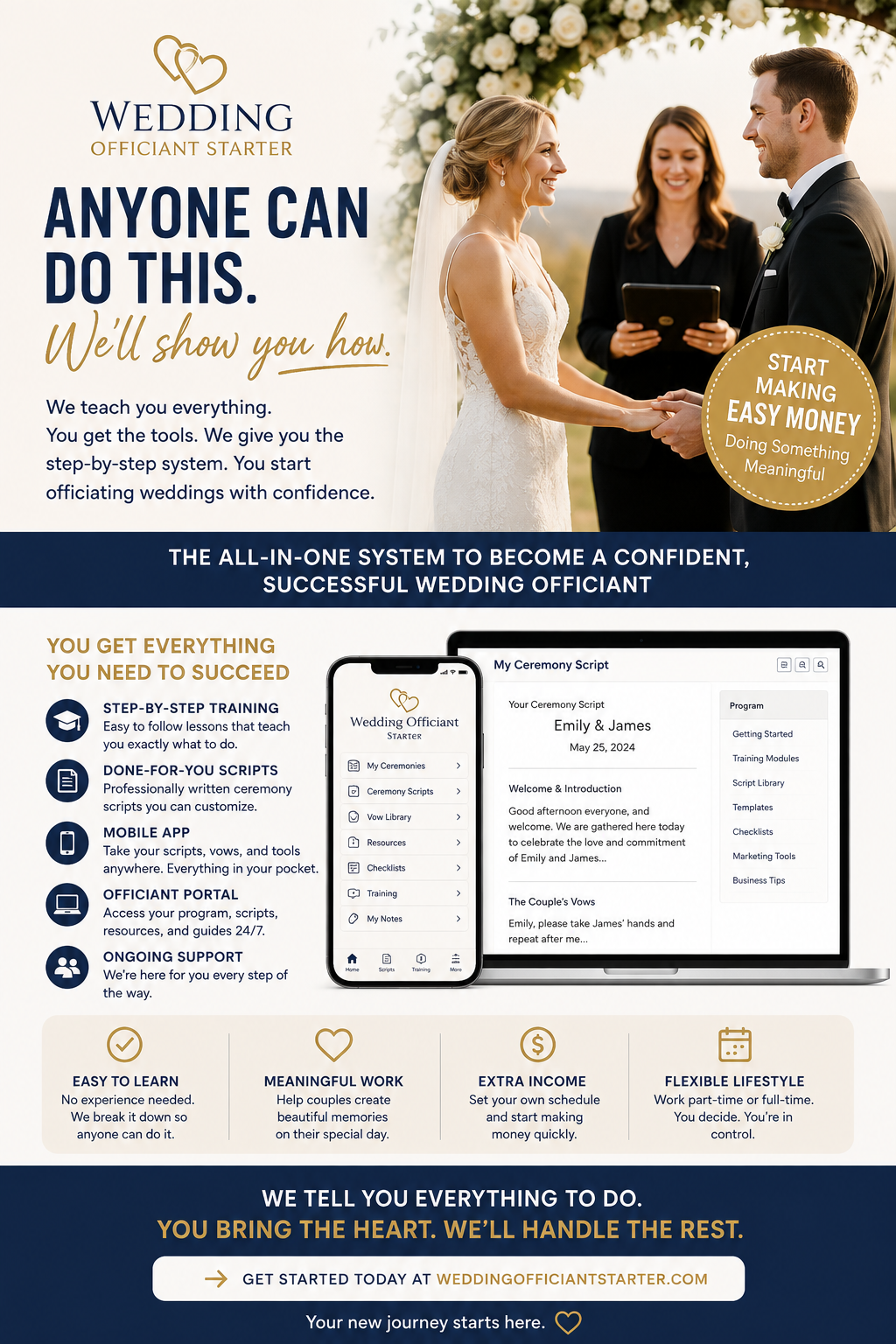
A real business project with a public website, paid access, private Student Center, ceremony builders, an Android app, instructions, marketing, and ongoing troubleshooting.
See how it became a business →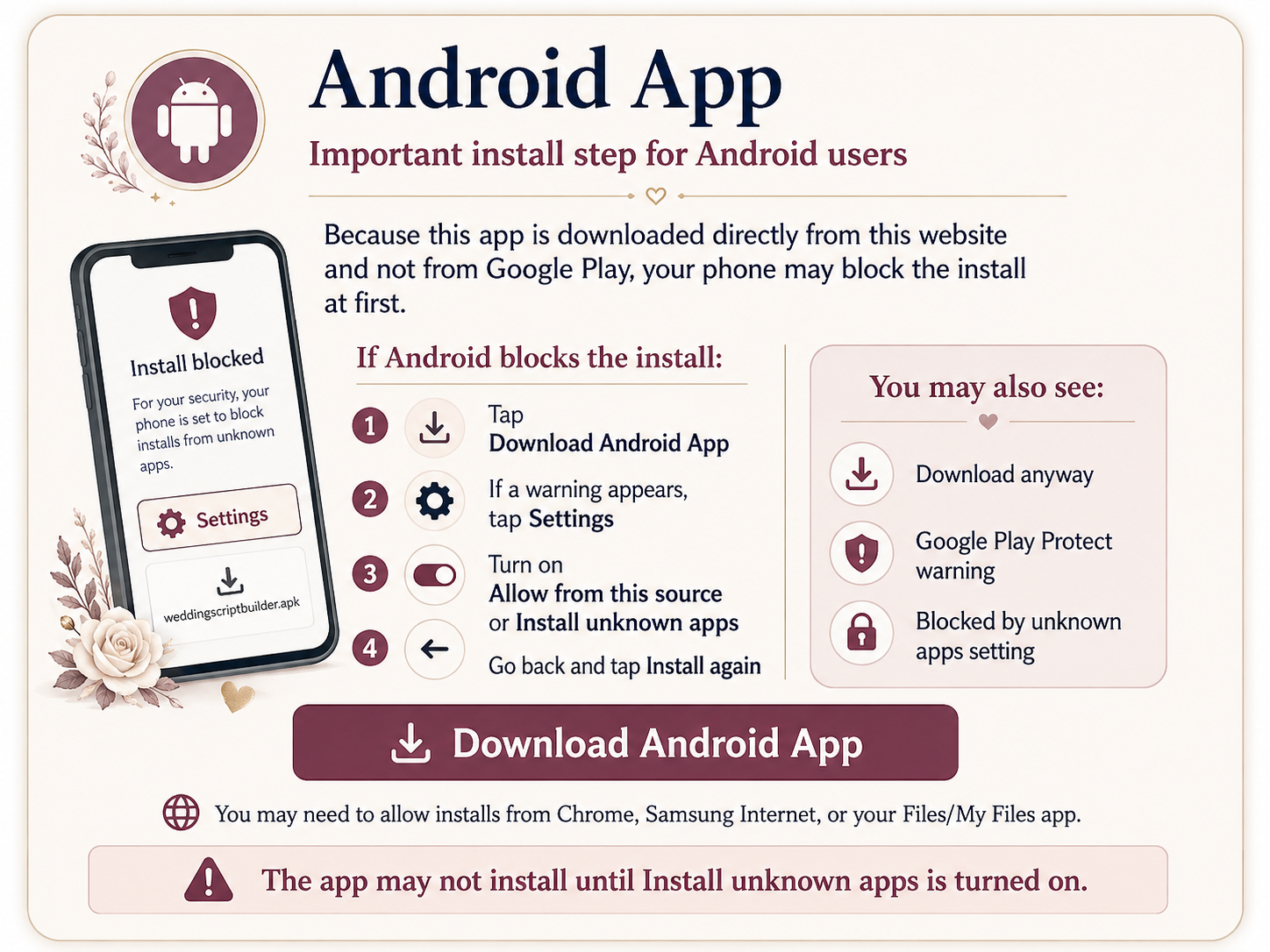
When an Android app was blocked from installing, the solution became a visual step-by-step guide instead of a reason to give up.
Codex is OpenAI's coding agent. Think of it as the part of ChatGPT that can work directly with a website or app project: inspect files, change code, run commands, fix errors, and help test the result.
You need ideas, explanations, research, writing, screenshots, troubleshooting, or someone to tell you the next button to click.
You have a website, app, or coding project and want AI to actually work with the project files—such as finding a bug, editing code, adding a feature, or testing a fix.
This is the easiest place for many beginners to start on Windows or Mac.
Use this when Codex needs the Chrome browser you already use every day.
Do not assume everyone gets a fixed number of Codex credits. Codex access and included usage depend on the ChatGPT plan, and larger or longer jobs can use more of the allowance. When available on your plan, additional credits can be purchased after included usage is reached. Check Codex Settings → Usage Dashboard to see your current usage and the options available to your account.
Codex features, plan limits, credits, and setup options can change. Check the official OpenAI links above when a plan-specific detail matters.

One Click at a Time grew out of real projects Mark Rosenthal built with AI, including websites, app help, graphics, ads, troubleshooting guides, and step-by-step fixes.
The mission is simple: help everyday people use AI to turn ideas into something real—one screenshot and one click at a time.
Read the story behind One Click at a Time →
If this free project helps you, you can support it with Cash App.
Have a question about a tutorial, see something different on your screen, or want to share what you built using the One Click at a Time method? You can reach Mark Rosenthal on Facebook.
You do not need a business plan, a coding course, or the right technical words. Start by telling ChatGPT what you want to make—and when you get stuck, show it what you see.